
Download CHM to PDF – Fast, Free, Secure CHM Converter
Overview
CHM‑to‑PDF is a lightweight, Windows‑based utility that transforms Compiled HTML Help (CHM) files into universally readable PDF documents. The tool targets developers, technical writers, and everyday users who maintain collections of e‑books, manuals, or software documentation in the CHM format and need a portable, device‑agnostic version. By preserving the original layout, fonts, and hyperlinks, CHM‑to‑PDF ensures that the visual integrity of the source file remains intact after conversion.
The application is free to download, does not require an internet connection after installation, and runs without additional runtime dependencies, making it an ideal solution for offline environments or secure corporate networks. Its drag‑and‑drop interface reduces the learning curve to a few seconds, while the batch conversion feature accelerates the processing of large libraries. Whether you are migrating legacy help files to a modern documentation platform or simply want to read a CHM manual on an iPhone or iPad, CHM‑to‑PDF delivers a reliable, one‑click workflow that eliminates the need for third‑party PDF printers or complex command‑line scripts.
Key Features
- Batch Conversion: Convert multiple CHM files in a single operation, saving time for large documentation projects.
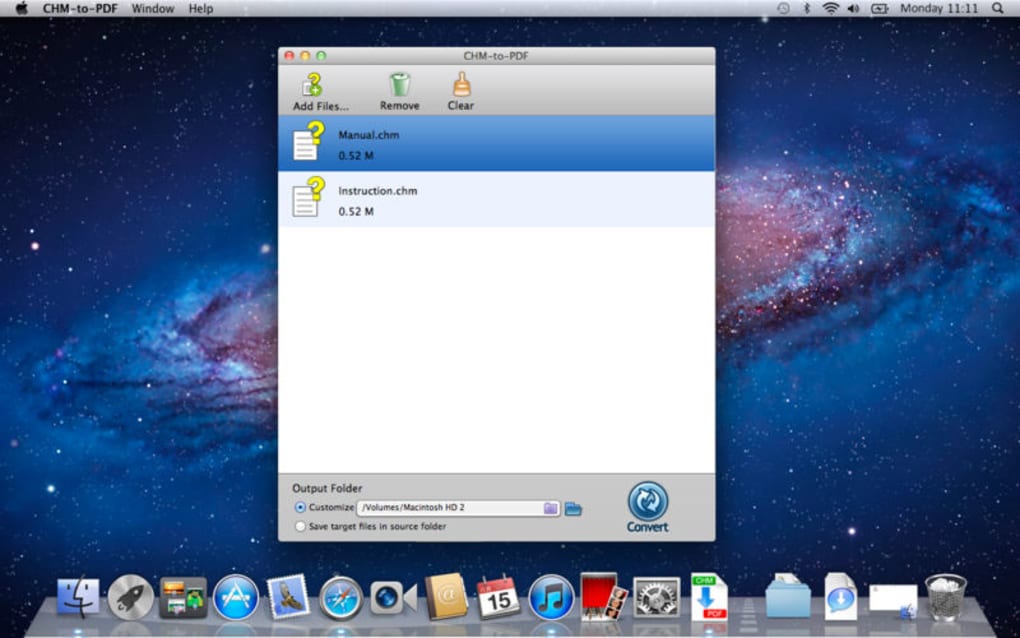
- Drag‑and‑Drop Interface: Simply drop files onto the main window; the tool automatically queues them for conversion.
- Layout Preservation: Original styles, fonts, images, and hyperlinks are retained in the resulting PDF.
- Fast Processing: Optimized conversion engine generates PDFs within seconds for average‑size CHM files.
- Zero‑Installation Option: Portable executable can be run directly from a USB stick without registry changes.
- Secure Conversion: All processing occurs locally; no data is uploaded to external servers.
- Print‑to‑PDF Workflow: Uses a built‑in virtual printer, allowing you to select PDF output directly from the CHM viewer’s print dialog.
- Cross‑Device Compatibility: Output PDFs can be opened on Windows, macOS, Android, iOS, and any device with a PDF reader.
Installation & Usage Guide
Getting started with CHM‑to‑PDF is intentionally straightforward. First, download the installer from the official website. The installer is a single .exe file, typically under 5 MB, which means it downloads quickly even on slower connections. Run the installer; it presents a minimal wizard that asks you to accept the license agreement and choose an installation folder (the default path is C:\Program Files\CHMtoPDF). The process completes in under a minute and creates a desktop shortcut for instant access.
Once installed, launch the application. The main window displays a large drop zone labeled “Drag CHM files here.” You can either drag files from Windows Explorer or click the “Add Files” button to browse for them. After the files appear in the list, you have the option to reorder them or remove any unwanted entries. To start conversion, click the “Convert to PDF” button. The program immediately creates a PDF for each CHM file, placing the output in the same directory unless you specify a custom output folder in the settings panel.
For users who prefer a command‑line approach, CHM‑to‑PDF also offers a silent mode. By opening a Command Prompt and typing CHMtoPDF.exe /batch "C:\Docs\*.chm" /out "C:\PDFs", the tool processes all matching files without opening the graphical interface. This feature is handy for automation scripts or scheduled tasks on servers. Throughout the conversion, a progress bar provides real‑time feedback, and any errors (such as a corrupted CHM file) are logged in a plain‑text report located alongside the output PDFs.
Compatibility & System Requirements
CHM‑to‑PDF is built for Microsoft Windows operating systems ranging from Windows 7 up to Windows 11, including both 32‑bit and 64‑bit architectures. The application requires .NET Framework 4.6 or later, which is pre‑installed on most modern Windows installations. For users on older platforms, the installer automatically includes the necessary runtime components. While the primary target is Windows, the generated PDFs are fully compatible with macOS, Linux, Android, and iOS devices, allowing you to open them with any standard PDF reader such as Adobe Acrobat, Preview (macOS), or Google PDF Viewer (Android). There is currently no native macOS or Linux version of the converter itself, but the portable executable can be run under Wine on Linux if needed.
Hardware requirements are minimal: a dual‑core CPU, 2 GB of RAM, and at least 100 MB of free disk space for the application and temporary files. Because conversion occurs locally, the tool does not consume network bandwidth, making it suitable for offline environments or secure corporate networks where internet access is restricted.
Pros and Cons
Advantages
- Free and fully functional without hidden fees.
- Preserves original CHM formatting, including images and hyperlinks.
- Batch processing saves time for large document collections.
- Portable version eliminates the need for installation on shared computers.
- Local processing guarantees data privacy and security.
Disadvantages
- Only available for Windows; no native macOS or Linux GUI version.
- Advanced PDF customization (e.g., adding bookmarks or watermarks) is not supported.
- Requires .NET Framework, which may need to be installed on very old systems.
- Limited to converting CHM files; does not support other help formats like HLP.
- User interface, while functional, lacks modern visual polish.
Frequently Asked Questions
Can I convert encrypted or password‑protected CHM files?
CHM‑to‑PDF does not currently support decryption of password‑protected CHM files. The file must be unlocked using the original authoring tool before conversion.
Is there a limit to the number of files I can batch convert?
There is no hard‑coded limit; the only constraints are available system memory and disk space. For extremely large batches, we recommend converting in smaller groups to monitor performance.
Will the generated PDF retain clickable links from the original CHM?
Yes. All internal and external hyperlinks are preserved as active, clickable links in the PDF, allowing seamless navigation after conversion.
Do I need an internet connection to use CHM‑to‑PDF?
No. After the initial download, the application works entirely offline. This makes it ideal for secure environments where internet access is limited.
Can I customize the PDF output settings (e.g., page size, margins)?
The free version uses default PDF settings (A4 size, standard margins). Advanced layout options are available only in the paid “Pro” edition, which adds custom page sizing and watermark features.
Conclusion & Call to Action
CHM‑to‑PDF fills a niche that many modern documentation workflows have outgrown: converting legacy help files into a format that works on every device. Its combination of batch conversion, layout fidelity, and a zero‑cost model makes it a compelling choice for both individual users and small teams. While it lacks native macOS support and advanced PDF editing tools, the core functionality is solid, secure, and exceptionally easy to use. If you frequently encounter CHM manuals, e‑books, or software help files, downloading CHM‑to‑PDF will streamline your reading experience across Windows, Android, and iOS platforms.
Ready to transform your CHM library into portable PDFs? Click the download button below to get the latest version, install it in seconds, and start converting instantly. For power users, explore the silent‑mode command line for automation, and consider the Pro upgrade if you need custom PDF layouts. Enjoy a free, secure, and fast conversion solution—download CHM‑to‑PDF today!
CHM‑to‑PDF delivers exactly what its name promises: a quick, reliable way to turn CHM files into PDFs without compromising formatting. The batch feature and drag‑and‑drop UI make it ideal for users who need to process multiple files, while the portable version adds flexibility for shared workstations. The only drawbacks are the lack of native macOS support and limited PDF customization, but for most users these are minor inconveniences. Overall, it’s a valuable free tool for anyone handling legacy help documentation.